
MuleSoftForge Studio AI
MuleSoftForge AI is a helper for the source you already have open in Anypoint Studio. It sits beside your project so you can ask about flows, DataWeave, Problems view markers, and Console output, and — when you want a change — review proposed edits before anything is written.
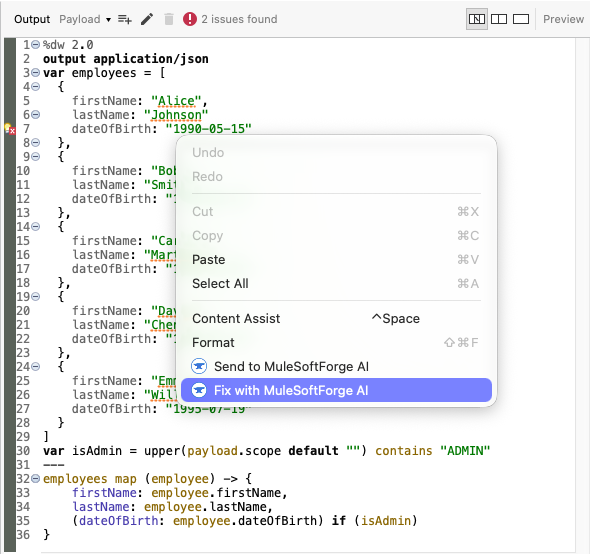
Broken DataWeave? Right-click in the editor and choose Fix with MuleSoftForge AI. Send to MuleSoftForge AI attaches the script to the chat so you can ask about it instead.
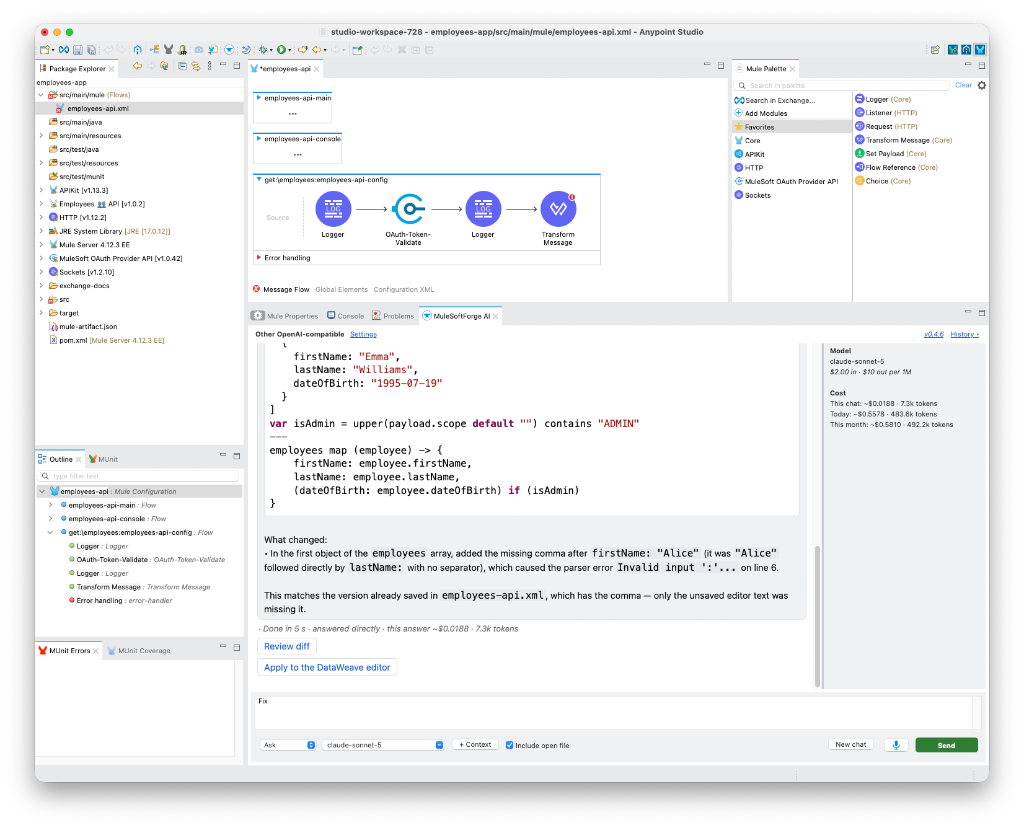
Asked to fix a Transform Message script with a parse error, the AI returned the corrected DataWeave and explained what changed: a missing comma. Review diff compares it with your script, and Apply to the DataWeave editor puts it in place; nothing changes until you choose. The column on the right shows the model and what this chat, today and this month have cost.
Studio remains how you create, scaffold, import, run, deploy, and test. The helper does not replace those workflows. It reads the project you are working in, explains what is there, and helps you fix and improve it.
Use it to:
- Explain or change Mule XML and related project files
- Work through DataWeave transformations
- Attach Problems view errors and warnings and ask for fixes
- Attach Console output (build failures, runtime logs) and ask what went wrong
- Paste a screenshot, such as an error dialog or a design, and ask about it
Open a project file (or select the project in Explorer) so the helper can see it. Attach more with + Context, or use Send to MuleSoftForge AI from the editor, the canvas, Problems, or Console.
It works with OpenRouter, the MuleSoft AI Gateway LLM Proxy, OpenAI, Anthropic, Ollama, and other OpenAI-compatible endpoints, using your own API key.
Tested with Anypoint Studio 7.28 (Eclipse 4.31, Java 17) on macOS. It needs no other Studio extensions.
Get started
- Install the plugin from the MuleSoftForge update site.
- Set up a provider and your API key.
- Use the chat: modes, context, and reviewing changes.
New releases arrive through Studio's own updates; see Update and roll back. To read and build the source yourself, see Build it yourself.