
Install
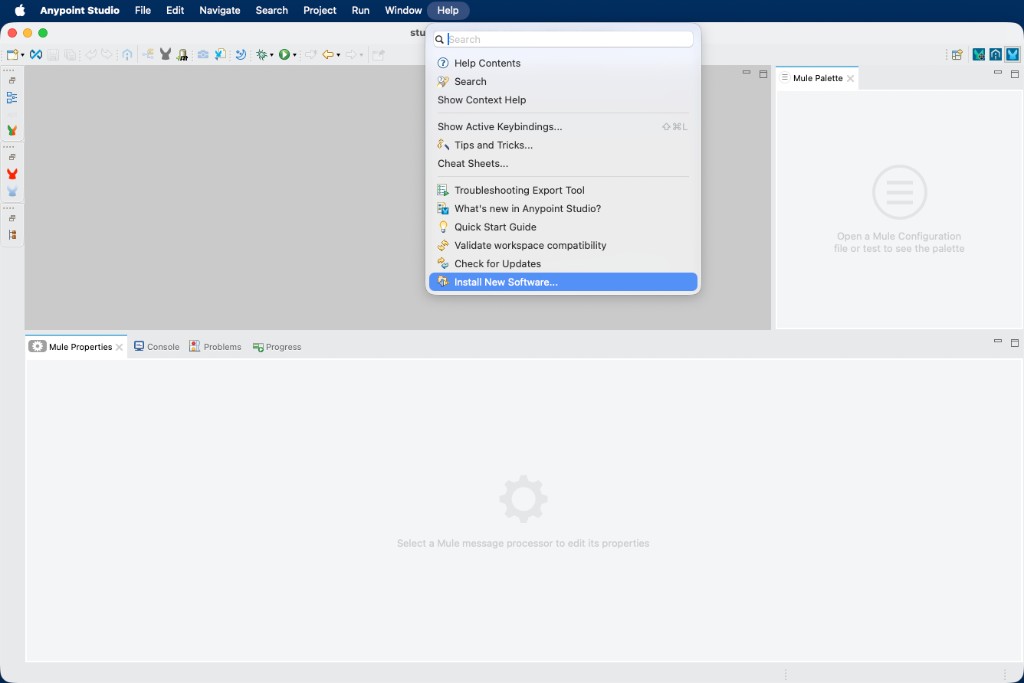
In Anypoint Studio choose Help > Install New Software…
Click Add…, name it
MuleSoftForge Studio AI, paste this location, and click Add:texthttps://docs.mulesoftforge.com/studio-ai/updates/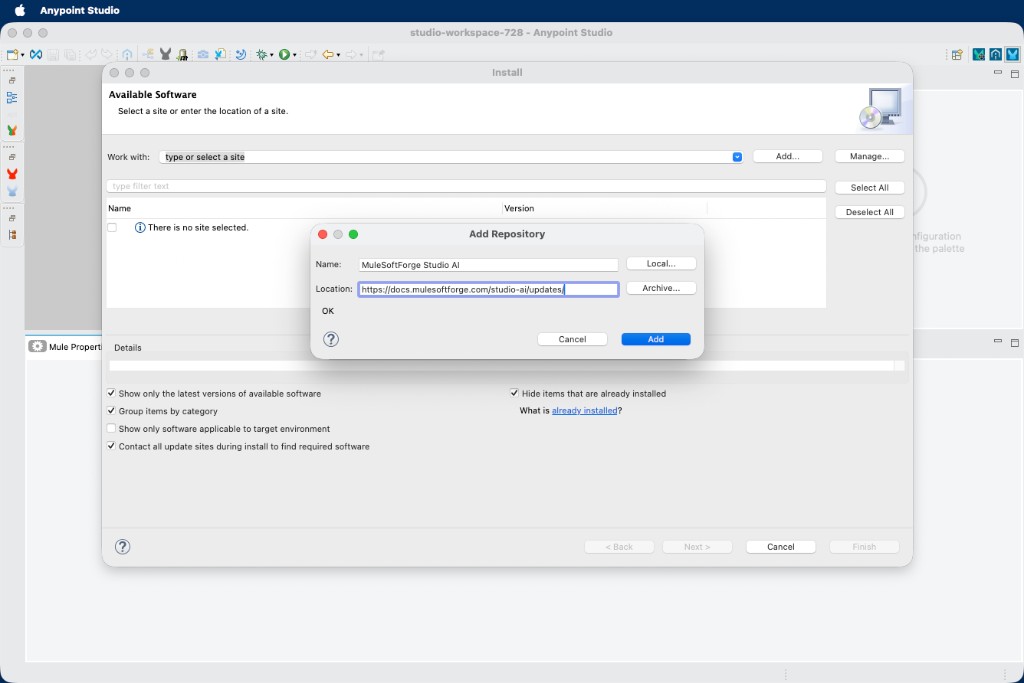
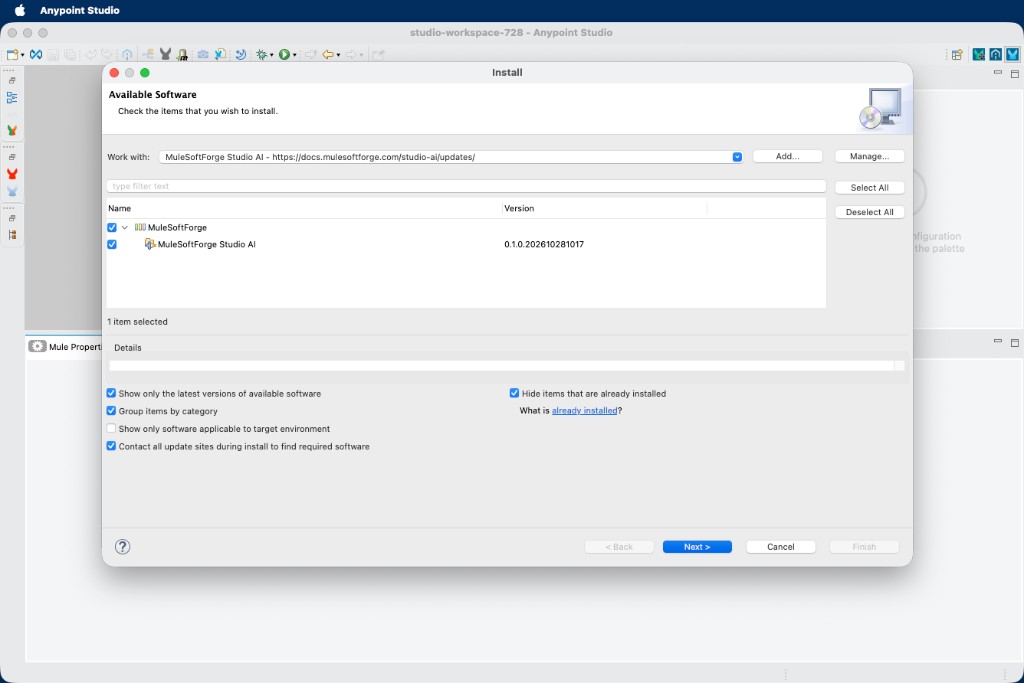
Tick MuleSoftForge > MuleSoftForge Studio AI and click Next until Finish.
Studio asks whether you trust unsigned content. Leave the Unsigned row ticked and click Trust Selected. The items listed should be
com.mulesoftforge.studio.aiandcom.mulesoftforge.studio.ai.feature. Leave Always trust all content cleared.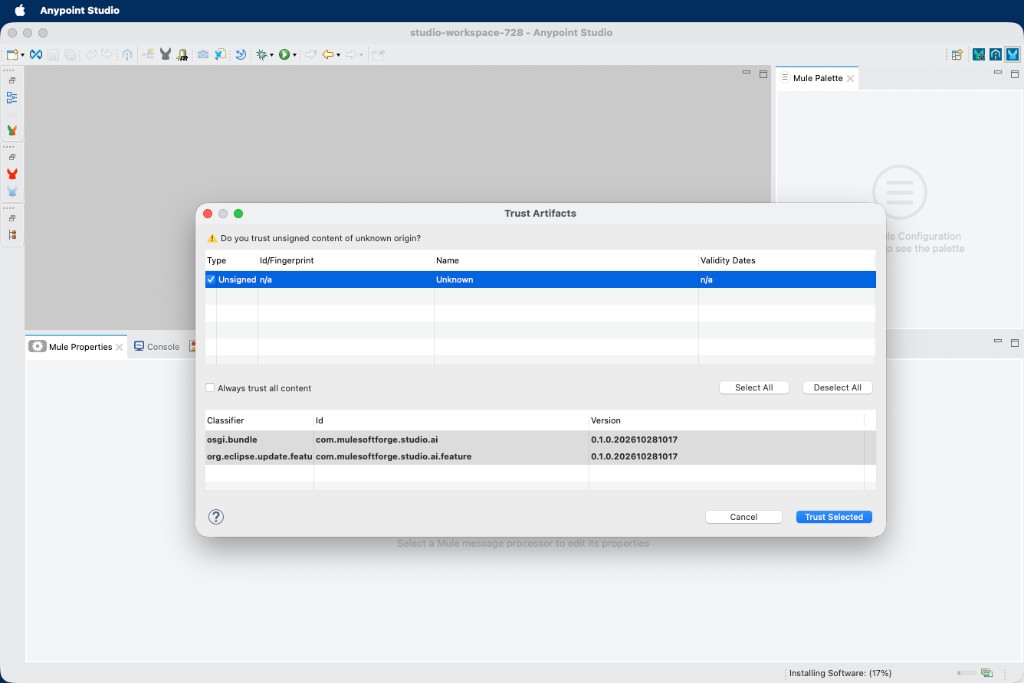
Beta releases are not signed yet, so Studio asks on every install and update. The source is on GitHub, so you can review it and build it yourself.
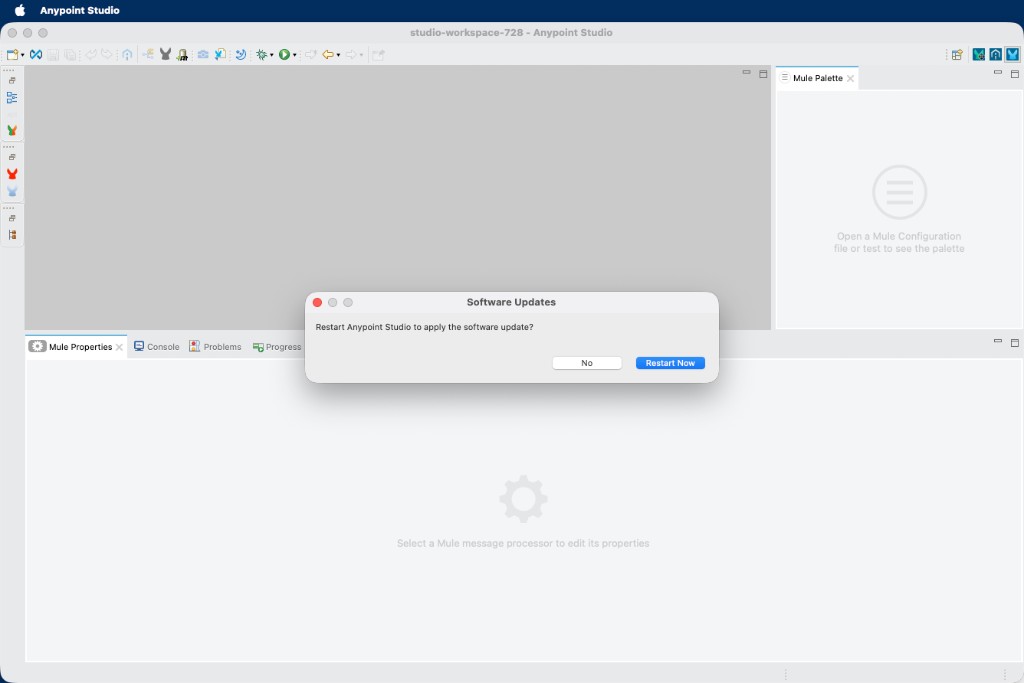
When Studio asks to restart, click Restart Now.
After the restart, click the MuleSoftForge button on the toolbar (Send the selection to MuleSoftForge AI). The MuleSoftForge AI view opens, with the installed version in its header.
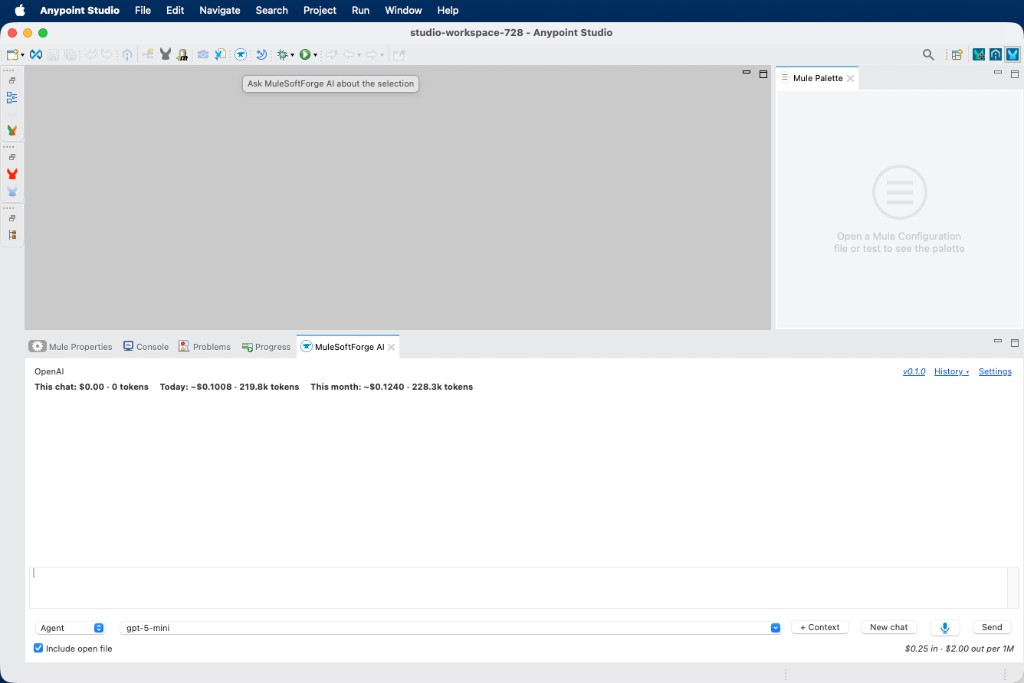
You can also open the view with Window > Show View > Other… > MuleSoftForge > MuleSoftForge AI, or Cmd/Ctrl+Alt+I.
Next: set up a provider.
If the install fails with a certificate error on a company network, see Troubleshooting.